Welcome to Pizza Edition Games! 🍕
Play 498 free browser games — racing, sports, action, puzzle and more. No downloads, no sign-ups. Pick a game and play right now!
🎮 All Categories
🔥 Featured Games


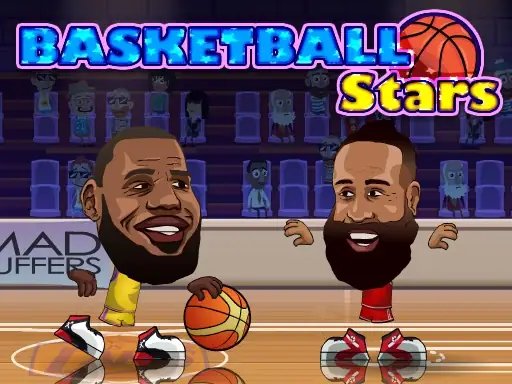
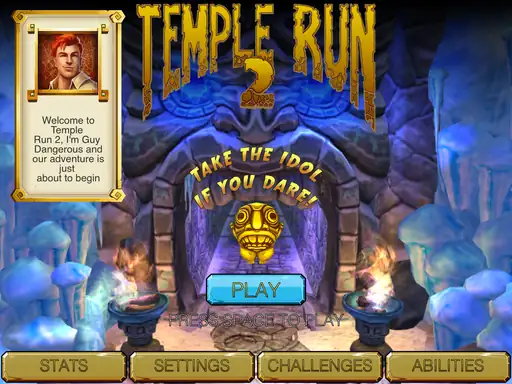
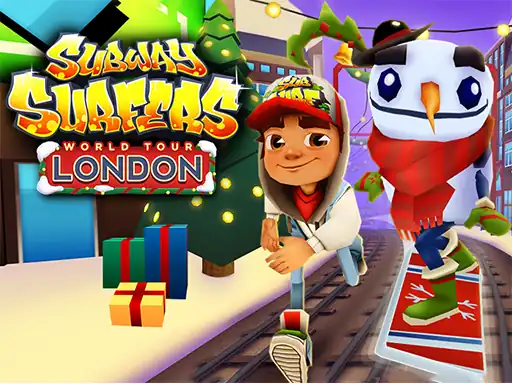


Pizza Edition Games is your free browser game hub: open the site, pick a game, and play instantly — no downloads, no installs, no account needed. Every game page also gives you practical tips, a playing guide, and FAQs so you can get better faster instead of just guessing the controls.
Below is the complete guide: what Pizza Edition Games are, how to play, the full game list by category, device compatibility, what “unblocked” really means, troubleshooting, and answers to the most common questions.
Quick Facts
- Type: Free browser-based game hub with hundreds of online games
- Cost: 100% free to play — every game on this site
- Downloads: None. Games run directly in your web browser
- Games: 498 titles and counting
- Categories: Racing, sports, action, shooting, puzzle, arcade, casual, multiplayer, and more
- Devices: Works on PC, Chromebook, and mobile (support varies by game)
- Extras: Every game page includes tips, a how-to-play guide, and FAQs
What Are Pizza Edition Games?
Pizza Edition Games is a free online game collection you play right in your web browser. Instead of being one single game, it is a hub that brings together hundreds of titles across genres — racing, sports, action, puzzle, arcade, and multiplayer games — all playable without installing anything.
Each game is its own separate title with its own controls, style, and gameplay. You browse the collection, click a game, and it loads inside the page. That is the whole idea: instant fun, zero setup.
What makes this hub different is that every game page does not just give you the game — it also gives you a written guide: how to play, the controls, smart tips to score higher, and answers to frequently asked questions. So whether it is your first time or your fiftieth, you always know what to do.
How to Play Pizza Edition Games
Playing is simple and takes less than a minute:
- Open the website in any modern browser (Chrome, Edge, Firefox, or Safari).
- Browse or search the game library, or pick a category below.
- Click the game you want — it loads inside the page’s game window.
- Press play and follow the controls shown on the game page.
- Use fullscreen when available for a bigger, better view.
Most games use familiar web technology (HTML5 and JavaScript), so they start fast and run smoothly. If a game ever feels slow, the troubleshooting section below will help.
Do You Need to Download or Install Anything?
No. Every game here is designed to run directly in the browser — no game files, no launchers, no installers. You open the game page and play.
As a general safety rule for the whole internet (not just gaming): if any website ever asks you to download an unfamiliar executable or extension before letting you play a browser game, stop and verify what it is. A normal browser game should never require that.
Do You Need an Account?
No. You can play every game on this site without creating an account. Just open a game page and start playing.
One thing to know: many browser games save your progress locally in your own browser (using browser storage). That means your high scores and progress stay on your device — clearing browser data may reset them.
Pizza Edition Games List by Category
With 498 games, the easiest way to find something you will love is to start from a category. Here is what the collection covers:
Racing and Driving Games
Quick controls, obstacle courses, drifting, and vehicle physics. Great for short sessions because most rounds start and finish in minutes. Look for stunt driving, drift challenges, and track racing titles.
Sports Games
Football, basketball, soccer, and other competitive sports — from fast arcade matches to games with team management and season progression. Controls vary by title, so skim the guide on the game page before your first match.
Action and Shooting Games
Fast movement, combat, and reaction-based challenges, including single-player missions and competitive multiplayer modes. These tend to need a keyboard and mouse for the best experience.
Puzzle and Brain Games
Logic, patterns, words, and problem-solving instead of fast reflexes. Ideal for quiet, short sessions — the objective is usually clear within seconds, and difficulty ranges from casual matching to serious spatial challenges.
Arcade and Casual Games
Simple mechanics, instant fun, endless replay value. These are the easiest games to pick up: almost no learning curve, perfect when you only have a few minutes.
Multiplayer and .io Games
Competitive and cooperative browser games — battle other players online or share one keyboard for local two-player fun. Always check the game page to see which multiplayer mode a title supports.
Popular Pizza Edition Games to Try
There is no single “best” game for everyone — it depends on your time, device, and mood. Here are good starting points:
For Quick 5-Minute Sessions
Pick arcade or casual titles with simple controls and fast rounds. You will understand the objective in seconds and can stop after one short round.
For Racing Fans
Start with the racing and driving category: stunt tracks, drift challenges, and obstacle courses. Some focus on physics and precision, others on pure speed — the guide on each game page explains the controls.
For Sports Fans
Try the football, basketball, and soccer titles. Decide whether you want quick arcade matches or deeper team-management gameplay, then check the listed controls (some sports games play better with a keyboard than with touch).
For Puzzle Fans
Explore the logic, word, and pattern games. They are perfect for slower sessions and usually work fine with just a mouse or touchscreen.
For Multiplayer Players
Look for games explicitly marked multiplayer, two-player, or .io. Check the instructions first so you know whether it is online competition or local two-player on the same device.
How to Choose the Right Game
Match the game to your situation instead of hunting for one universal “best”:
- Short on time? Arcade, casual, or simple puzzle games.
- Want speed? Racing, driving, or drift titles.
- Want competition? Sports or multiplayer/.io games.
- Want to think? Puzzle, logic, or word games.
- Playing with a friend? Two-player or multiplayer titles.
- On a touchscreen? Games that explicitly list touch controls.
- On an older device? Simpler graphics and mechanics run smoothest.
Play on Chromebook, PC, and Mobile
Pizza Edition Games run in the browser, so compatibility depends on the individual game — its controls, technology, and your device. A game that feels perfect on a desktop may play differently on a phone.
On Chromebook
Most browser games here work well on Chromebooks with a current browser. Keyboard-and-trackpad games are a natural fit, and touchscreen Chromebooks handle touch-friendly titles nicely. Note: school-managed Chromebooks may have network filters that block gaming sites — that is a network restriction, not a problem with the game.
On PC or Mac
Desktops and laptops are ideal for browser gaming: modern browsers plus keyboard and mouse cover nearly every title. If a game does not load, update your browser and make sure JavaScript is enabled.
On Mobile
Many games support touchscreens and mobile browsers. But mobile compatibility is not universal — a game built for precise keyboard input can be frustrating on a small touchscreen even if it loads. For the best experience, choose games that list touch controls, and use fullscreen when offered.
What Does “Pizza Edition Unblocked” Mean?
“Unblocked” simply means a game website is accessible on a particular network without being filtered. It does not mean every gaming site works everywhere.
Schools, workplaces, and libraries apply their own filters, so a site that opens fine at home may be blocked on a school network. Each domain is filtered independently, and rules can change at any time — “unblocked” is never a permanent guarantee.
If a site is blocked on your school or workplace network, respect the network’s rules. Do not use VPNs, proxies, or other workarounds to bypass administrator restrictions without permission. For legitimate access, ask the administrator whether the site can be approved.
Tips for a Better Gaming Experience
- Keep your browser updated — Chrome, Edge, Firefox, or Safari, latest version.
- Close unused tabs to free memory if a game lags.
- Use fullscreen when the game offers it.
- Read the game page guide first — every game here lists its controls, tips, and FAQs. A minute of reading saves ten minutes of frustration.
- Use a stable connection so game assets load consistently.
- Never download random files to “unlock” a browser game.
- Keep browser security on — do not disable protections or ignore warnings just to start a game.
- Follow network rules on school or workplace devices.
Game Not Working? Troubleshooting Guide
First, figure out where the problem is: the website won’t load, the game window stays blank, or the controls don’t respond. Each has different fixes.
The Website Won’t Load
- Check whether other websites load — the issue may be your connection.
- Refresh and try again in a few minutes (temporary outages happen).
- Your network or administrator may restrict the domain — follow the network’s policy.
- Try a different browser or disable extensions that might interfere.
The Game Window Stays Blank
- Refresh the page and give the game a moment to load its assets.
- Use a current, supported browser with JavaScript enabled.
- Try another game on the same site — if others load, the issue is specific to that title.
- Clear temporary browser data, then reopen the game.
- Never allow extra downloads or ignore security warnings to force a game to load.
The Controls Don’t Respond
- Read the game’s own instructions first — controls are not standardized across games.
- Click inside the game window once so it captures your keyboard input.
- Common schemes: arrow keys / WASD + space bar, mouse click and drag, or touchscreen tap and swipe.
- If controls work on one device but not another, the game may be designed for a different input method — pick a title suited to your device.
Frequently Asked Questions
What are Pizza Edition Games?
Pizza Edition Games is a free browser game hub with 498 online games across racing, sports, action, puzzle, arcade, and multiplayer categories. Every game page also includes a playing guide, tips, and FAQs.
Is Pizza Edition Games free?
Yes — every game on this site is completely free to play in your browser. No downloads, no installs, no account required.
Do I need to download anything?
No. All games run directly in the browser. Be cautious of any site that asks you to install unfamiliar software before playing a browser game.
Do I need an account to play?
No account needed. Open any game page and start playing immediately. Progress is typically saved locally in your browser.
What does “unblocked” mean?
It means the site is accessible on a particular network without being filtered. It is network-specific — a school or workplace can still block any domain independently.
Can I play on Chromebook?
Yes, most games work on Chromebooks with a modern browser. Compatibility varies by title, and school-managed devices may have network restrictions.
Can I play on mobile?
Many games support touchscreens and mobile browsers. For the best experience, choose games that list touch controls — keyboard-heavy games can be awkward on a phone.
Why isn’t a game working?
Usually it is a network restriction, a temporary outage, a browser issue, or a game-specific loading problem. Refresh the page, try a current browser, test another game, and check the game’s controls. If the domain is blocked by your network, follow the administrator’s policy.
Are browser game sites safe?
It depends on the specific site. Good signs: HTTPS connection, no unexpected downloads, no excessive redirects, and no requests for sensitive personal information. Never provide passwords or payment details just to play a casual browser game.
How do I find the right game?
Start from a category that matches your mood: racing for speed, sports for competition, puzzle for thinking, arcade for quick fun, multiplayer for playing with others. Every game page’s guide helps you decide before you play.
Start Playing
That is everything you need to know. Pick a category, choose a game, read its quick guide, and play — all free, all in your browser. If a game ever stumps you, its tips and FAQs are right below the game window.
Have a favorite game, a high score to brag about, or a game you want added? Drop a comment — we read every one.